Quick Apple Maps Listing Playbook for Local Businesses or Hire Help
Claim or add your Apple Maps listing through Apple Business Connect, then verify ownership by phone or document upload. From there, lock down accurate hours, address, phone number, and category, add sharp photos, turn on action buttons like call or order, and check Apple Business Connect insights monthly to see what’s actually working.
TL;DR:
- Claim existing listings first, as they can be easier to verify and update than adding new ones from scratch.
- Regularly update your photos and categories to maintain high visibility, with a focus on accurate, recent images and relevant categories.
- Verify ownership using documents or phone calls, and promptly handle reported changes or duplicates to prevent misinformation.
- Monitor metrics like directions taps and website clicks, and run small experiments to optimize your listing’s effectiveness.
- Keep your business information consistent across all directories to support accurate mapping and prevent duplicate or conflicting listings.
Table of Contents
- How Do You Claim an Apple Maps Listing?
- Optimize Your Place Card: Categories, Photos, Description, and Action Buttons
- Who Handles Updates, Transfers, and Reported Changes?
- What Metrics Actually Show Your Listing Is Working?
- How Directory Consistency Supports Your Apple Maps Presence
- Treating Your Apple Maps Listing as Ongoing Maintenance
- Get Your Listings Consistent Across Every Directory, Not Just Apple Maps
- Sources
How Do You Claim an Apple Maps Listing?
You need an Apple ID to get started. Sign in at Apple Business Connect and go to Brands, then Locations. Everything happens there.
Before you add anything new, search for your business first. Apple often has a listing already sitting in its system, sometimes created from public records or partner data, even if you never touched it. Claiming an existing card is faster than starting from scratch, so don’t skip this step.
Here’s the sequence that gets you from zero to verified:
- Search your business name and address in Apple Business Connect to check if a listing already exists.
- Claim it if it’s there. If not, select “Add new” and choose single location.
- Enter your address carefully, then drag the map pin or type coordinates directly so the pin sits on your actual entrance, not the middle of the parking lot.
- Set your primary category and fill in phone number, website, and hours.
- Verify ownership. Existing listings often qualify for phone verification, which Apple flags as available when applicable. New locations typically need document upload instead, things like a business license or a recent utility bill.
- Submit a Request Transfer if someone else already manages the listing, a previous owner, a former manager, an agency that never handed over access. Attach supporting documentation and expect up to five business days for review.
If you run more than one location, build out a brand profile first. Apple cascades your logo and cover photo across every linked location automatically, which saves real time once you’re past the third or fourth site.
Optimize Your Place Card: Categories, Photos, Description, and Action Buttons
A claimed listing is the floor, not the ceiling. What actually moves someone from “saw your pin” to “walked through your door” comes down to five specific levers.
Category accuracy matters more than most owners realize. Apple expanded its category list recently, and a business tagged under a broad or outdated category often gets buried under competitors with tighter labeling. Check yours against the current options every few months, not just once at setup.
Photos carry more weight than a paragraph of description ever will. A place card without a strong cover image reads as neglected even if every fact on it is correct. Aim for:
- A clean cover photo that represents the business at its best, storefront or signature product
- A clear storefront shot so people recognize the building from the street
- One or two interior shots that set expectations before someone walks in
- A staff or team photo if your business runs on personal service or trust
Refresh these every few months. A photo from three renovations ago works against you.
Your description should read like it’s written for the customer standing outside deciding whether to come in, not for a search algorithm. Keep it short, specific, and skip the generic “family owned since” filler unless it’s genuinely core to your identity.
Showcases and action buttons are where clicks turn into visits or calls. Use showcases to highlight a seasonal menu, a limited promotion, or a signature service. Turn on action buttons for booking, ordering, or calling, and test every link on a phone before you publish. A broken “Order Now” button undoes everything else you just optimized.
Pro Tip: Keep your name, address, and phone number identical across every platform you’re listed on. Even small mismatches, “St.” versus “Street”, a slightly wrong suite number, can create duplicate or conflicting entries that confuse both customers and Apple’s own data reconciliation.
Who Handles Updates, Transfers, and Reported Changes?
Editing your own listing and claiming ownership of it are two different processes. Editing lets you tweak hours or swap a photo. Claiming establishes you as the verified party who controls the card long term, and that’s what unlocks Request Transfer if someone else has that control now.
Apple doesn’t wait for you to notice problems, either. Customers can report a business as closed, or Apple can pull updates from partner data sources, and those changes show up in your dashboard as “Updates available” before they go live on the public card. Ignore that queue and incorrect information can sit there uncorrected for weeks.
A few situations come up constantly:
- Old occupant still showing on your address: edit the listing directly if you have access, or request removal if it belongs to a business that’s long gone.
- Duplicate listings for the same location: flag the older or incorrect one for merging rather than trying to build a third entry.
- Documentation for verification or transfer: a business license, a recent utility bill, or an official letter on business letterhead all typically qualify.
Pro Tip: Check “Updates available” weekly if you manage more than one location. A single unreviewed change, wrong hours during a holiday week, for instance, costs you real foot traffic before you even notice it happened.
What Metrics Actually Show Your Listing Is Working?
Apple Business Connect tracks the numbers that matter for local visibility: impressions, taps for directions, website clicks, phone calls, and actions taken from your showcases. These aren’t vanity numbers. Taps for directions is close to the clearest signal you’ll get that your place card converted a search into an actual visit.
Read the dashboard for trends, not single-day spikes. A jump in impressions with flat direction taps usually means your card is showing up but not convincing anyone once they see it, which points back to your photos or description, not your category.
Pair this with your own web analytics. Filter for iOS and Safari traffic to isolate visits that plausibly originated from Apple Maps, since Apple’s ecosystem surfaces your place card across Maps, Siri, and Wallet simultaneously.
Run small experiments instead of overhauling everything at once:
- Swap the cover photo and watch direction taps over the following two weeks.
- Rewrite the description and check whether website clicks shift.
- Adjust hours precision (exact close times instead of round numbers) and see if call volume changes.
The installed base of active Apple devices in the U.S. alone is large enough that even small conversion improvements on your place card translate into meaningful foot traffic over a quarter.
How Directory Consistency Supports Your Apple Maps Presence
Apple Maps doesn’t operate in isolation. It cross references signals, and a business with contradictory names, addresses, or categories scattered across other directories creates the kind of confusion that leads to misattributed pins or duplicate cards in the first place.
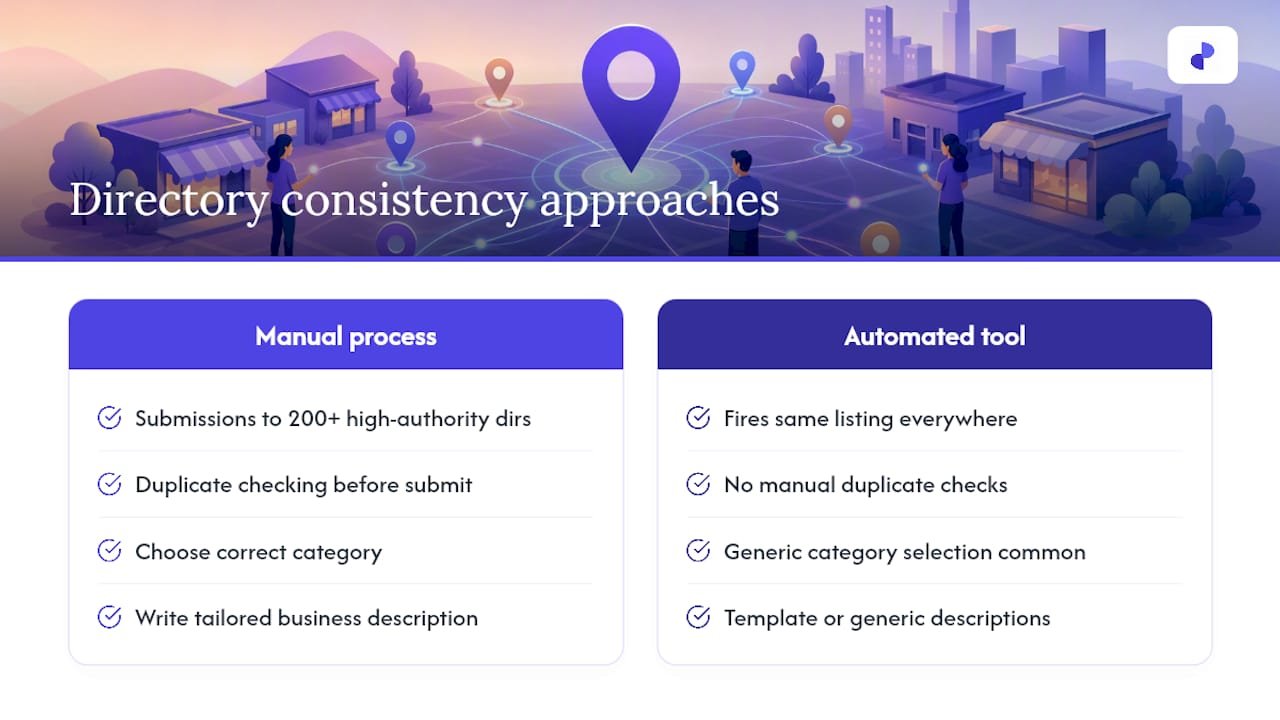
Manual directory work, done carefully, catches problems before they reach Apple’s system. Checking for duplicates, choosing the right category, and writing a description that matches your actual business rather than a generic template all reduce the odds of a mismatch. StartupSubmit builds its process around exactly that: manual submissions across 200+ high-authority directories, duplicate checking, category selection, and placement reporting, rather than an automated tool firing off the same listing everywhere without review.
If you’re running multiple locations, just launched, or you’re staring at a backlog of inconsistent listings with no time to fix them one by one, that’s usually the point where handing off the cleanup work makes more sense than doing it solo.
Treating Your Apple Maps Listing as Ongoing Maintenance
Most owners treat their listing like a form to submit once and forget. That’s the mistake. A place card is closer to a storefront window: it needs a wipe down every so often or it starts looking abandoned even when the business inside is thriving.
Run a monthly check: confirm hours (holiday hours especially), swap in a fresh photo if the season’s changed, glance at recent reviews, and clear out anything sitting in “Updates available.” That’s maybe ten minutes. The payoff shows up as more direction requests and more calls, because an accurate, current listing simply gives people fewer reasons to hesitate.
Set a recurring reminder to check Apple Business Connect. The businesses that treat this as routine, not a one-time task, are the ones whose numbers actually climb.
— Danish
Get Your Listings Consistent Across Every Directory, Not Just Apple Maps
Fixing your Apple Maps listing solves one piece of a bigger visibility problem. If your business name, category, and description vary across the dozens of other directories that search engines and map platforms pull from, you’re rebuilding the same confusion Apple just helped you clear up.
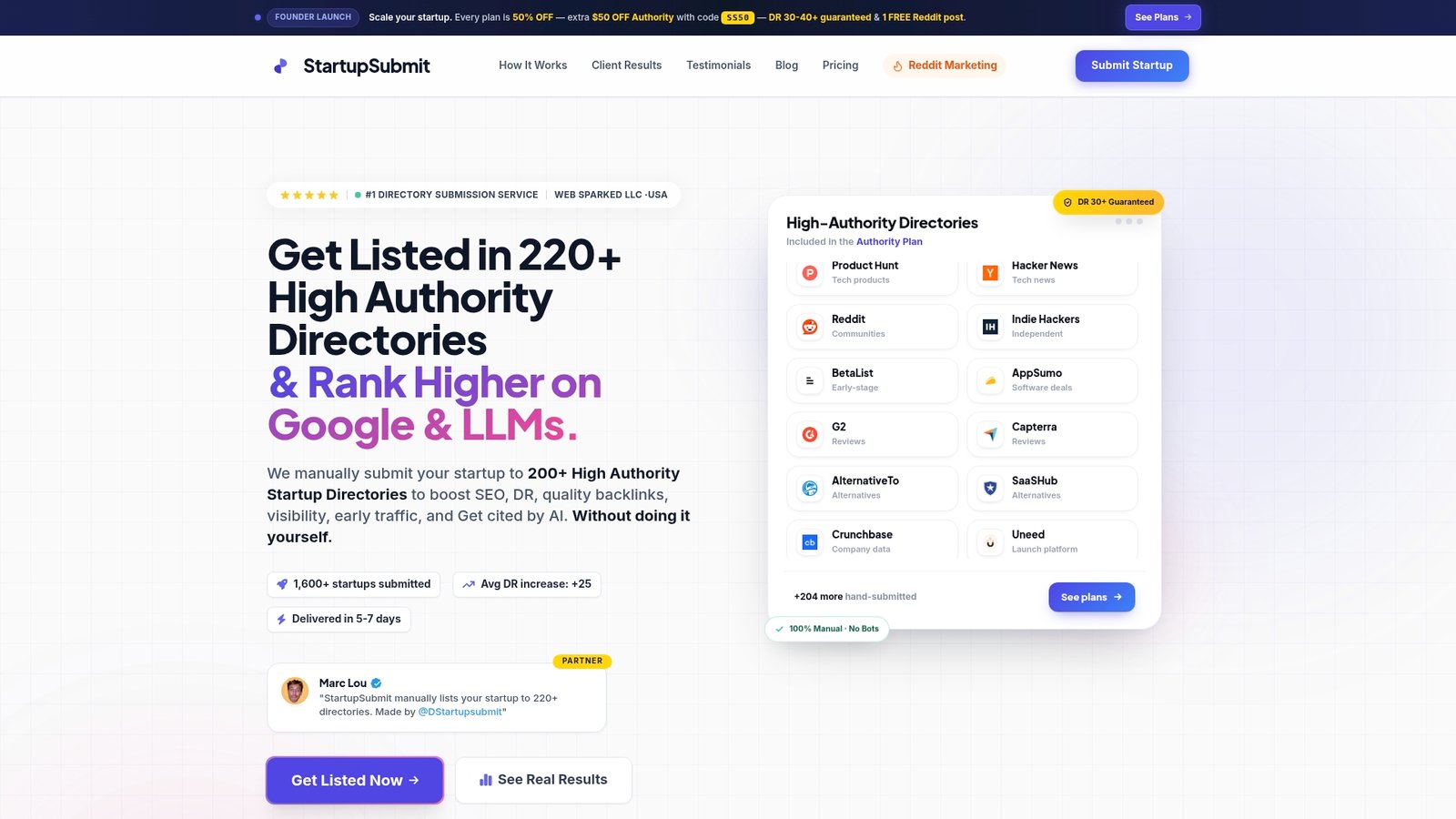
A specialized service can handle that cleanup with a team that manually checks for duplicates, picks the right category on each platform, and writes a description that actually reflects your business, across numerous high-authority directories. It’s built for founders and small business owners who don’t have the bandwidth to submit and monitor listings one site at a time. If you’re weighing your options, see how the approach compares on the StartupSubmit vs SubmitSaaS breakdown. Otherwise, start your directory submission and get your business showing up accurately everywhere it needs to.